

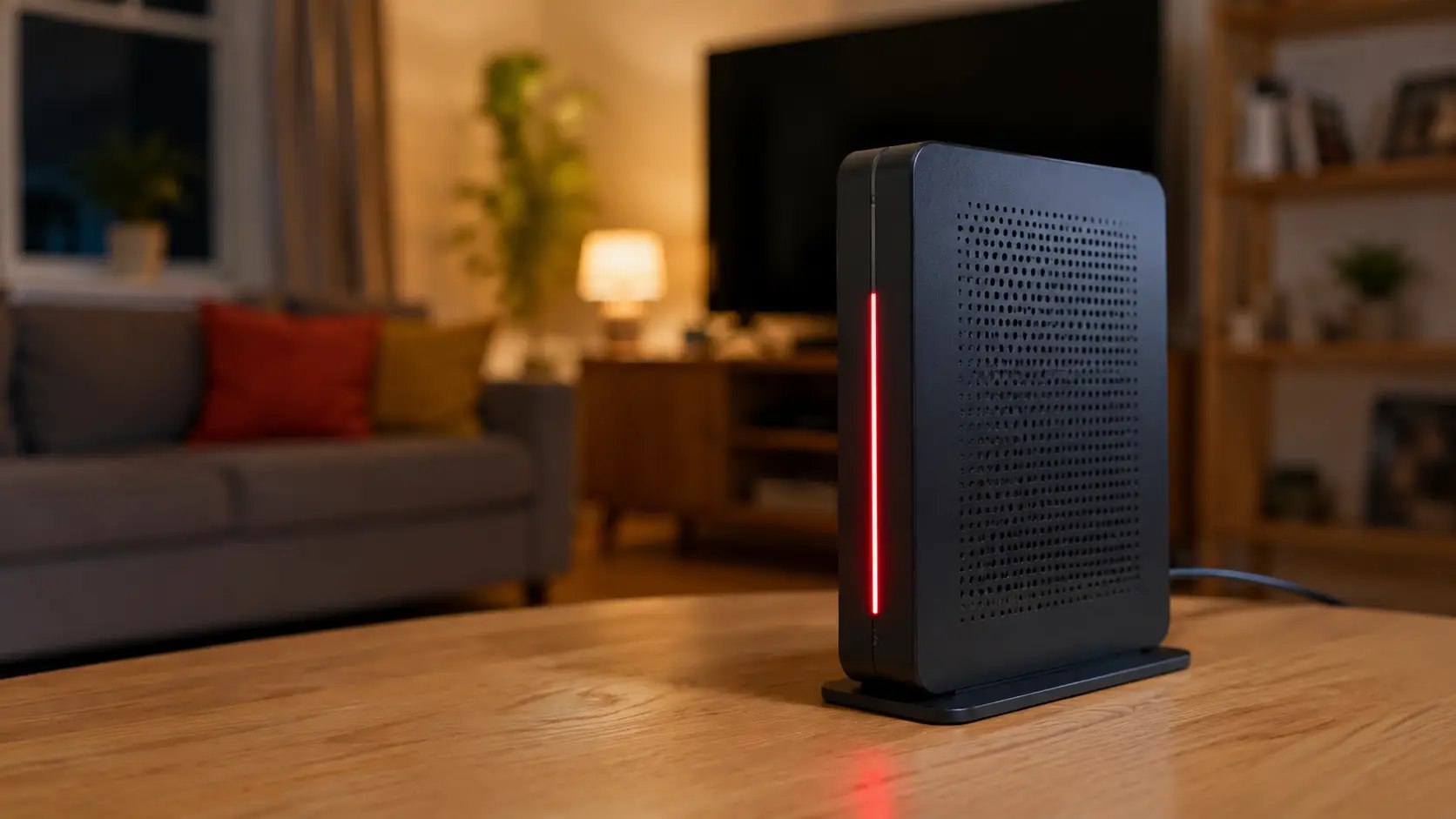
A Virgin Media router flashing red usually means the Hub has not established or maintained its expected connection.
The exact cause depends on your Hub model, which light is flashing, whether the broadband previously worked and whether you are completing a new installation.
Start by identifying your Hub, checking for a service fault, inspecting the accessible cables and rebooting the equipment correctly.
Do not immediately perform repeated factory resets, because they cannot repair an area outage, damaged cable or inactive wall socket.
Key Troubleshooting Highlights
| Situation | Best First Action |
|---|---|
| The Hub suddenly flashes red | Check the service status and broadband connection |
| A new Hub has never connected | Check the wall socket, cables and activation |
| The red light remains after restarting | Allow start-up to finish, then run diagnostics |
| A Hub 3 symbol flashes red | Identify the internet, WiFi, phone or power light |
| A socket or cable is damaged | Stop troubleshooting and request support |
| Repeated restarts do not work | Avoid further resets and arrange diagnostics |
Follow the steps in order so that you can separate a temporary connection problem from an installation, network or equipment fault.
What Does A Virgin Media Router Flashing Red Mean?

A flashing red light generally indicates that the Hub is starting, trying to connect or experiencing a connection-related problem. It does not automatically prove that the router is permanently faulty or overheating.
The meaning can vary according to:
- The Hub model you have
- The position or symbol of the light
- Whether the light is flashing or continuously red
- Whether the broadband has previously worked
- Whether you are installing new or replacement equipment
- Whether an area or account-specific fault exists
A temporary light pattern during start-up may be normal. However, a red light that continues after the Hub has had enough time to reconnect requires further checks.
Which Virgin Media Hub Model Do You Have, And Why Does It Matter?
The Hub model matters because Virgin Media routers do not all use the same indicator system. A flashing light on a Hub 3 should not be interpreted using instructions intended for a Hub 4 or Hub 5.
The Hub 5 has one principal light on the lower-right area of its front panel, while the Hub 4 uses a light around the upper part of the unit.
Hub 3 has separate indicators for WiFi, internet, phone and power, so the symbol that is flashing provides important diagnostic context.
Hub Model Comparison
| Hub Model | Indicator Arrangement | What To Inspect |
|---|---|---|
| Hub 5 | One principal front light | Whether it settles after start-up |
| Hub 4 | One light around the upper section | Whether the pattern continues after rebooting |
| Hub 3 | Separate labelled indicators | The exact internet, WiFi, phone or power symbol |
| Hub 5x | Installation-specific equipment | The instructions supplied with the connection |
Check the model label on the base or rear of the equipment rather than relying on appearance alone.
Why Is Your Virgin Media Router Flashing Red?
The most likely causes include a service fault, an incomplete installation, a loose connection or a Hub that cannot communicate correctly with the broadband network.
Hardware failure is possible, but it should not be assumed before simpler causes have been checked.
Is Virgin Media Experiencing A Service Or Network Fault?
An area outage, planned work or an individual connection fault can stop the Hub reaching its normal ready state. Check the service-status tool and run the broadband test before changing advanced settings.
The official Hub light guidance recommends checking that cables are firmly connected, restarting the Hub and testing the broadband connection for faults.
It also says further help or an engineer appointment may be offered when the test identifies a problem.
A general outage checker may not reveal every property-specific problem. Signing in and testing your individual service can provide a more relevant result.
New Installation Or Activation Problems
A new or replacement Hub may flash red when it has not connected through the correct wall socket, completed setup or registered properly with the network.
This is particularly relevant after moving home or using a QuickStart self-installation kit.
The official QuickStart installation guidance says self-installation is intended for properties with suitable existing cables and wall sockets.
It advises arranging an engineer if the cable is cut, the master socket is unsuitable or a wall socket is damaged.
Previous service at an address does not guarantee that every old socket remains connected or suitable.
Could A Loose Cable, Power Issue Or Hub Fault Be Responsible?
A loose broadband cable, insecure splitter, damaged socket or interrupted power supply can prevent the Hub connecting.
The Hub or its power adapter may also have developed a fault, but that conclusion normally requires official diagnostics.
Check only cables and connections that are safely accessible. Do not open external boxes, remove sealed fittings or alter network wiring.
How Can You Check Whether Virgin Media Is Down In Your Area?
Check the official service-status tool before resetting the Hub. This can show whether a known fault is affecting broadband services in your area.
Sign in where possible, run the broadband test and review any displayed fault information. When a known outage is being repaired, repeatedly rebooting or resetting your router is unlikely to restore the service sooner.
If no area problem appears, continue with cable and Hub checks. A clear status page does not rule out an account-specific fault, a damaged property connection or a problem affecting only your equipment.
Third-party outage reports may show that other customers are having difficulties, but they cannot diagnose your individual line. Use them only as supporting context.
How Should You Check The Hub’s Cables And Connections Safely?

Switch your attention to the accessible power and broadband connections. A connector can look attached while remaining loose enough to interrupt the signal.
Check that the power cable is firmly inserted into the Hub and wall socket. Then inspect the white broadband or isolator cable, ensuring it is securely connected at both the Hub and the intended wall socket.
If your setup includes a supplied splitter, confirm that each connection is firm and arranged as shown in the installation instructions. Avoid unsupported adapters, makeshift extensions or forcing a connector that does not fit.
Official setup instructions say the white cable should be secured at the Hub and connected firmly to the designated wall socket.
They also state that a successfully started Hub should eventually display a steady white ready light, although the light position differs between models.
Stop immediately if you notice exposed wiring, a burning smell, severe heat, a damaged socket or a cut cable. Those conditions require professional assistance rather than further home troubleshooting.
How Do You Fix A Virgin Media Router Flashing Red?
Fixing a flashing red light normally involves one correct reboot, followed by official diagnostics if the connection does not return. A factory reset should be reserved for situations where simpler checks have failed.
Reboot The Virgin Media Hub Correctly
Turn the Hub off at its switch or the wall socket, leave it off for approximately 10 seconds and switch it back on. Allow around 5–10 minutes for the Hub to complete its start-up sequence before testing the connection.
The official reboot and reset steps distinguish a normal restart from restoring the Hub’s factory configuration. A reboot normally keeps your network name, WiFi password and customised settings.
Official support guidance states:
“Turning the Hub off and on again, along with checking the cables are plugged in firmly, usually sorts most issues.”
Test more than one device after the restart. Where possible, compare WiFi with a wired Ethernet connection, although Ethernet cannot bypass a complete loss of broadband service.
When Should You Factory-Reset The Hub?
Consider one factory reset only after checking the service status, securing the cables and completing a proper reboot. A factory reset restores default settings and may remove a customised WiFi name, password or other configuration changes.
The reset procedure generally involves pressing the recessed reset button for the specified period while the Hub is powered on, then allowing it to restart. Check the instructions for your exact model before proceeding.
Do not repeatedly factory-reset the equipment. A reset cannot repair an external outage, cut cable, damaged wall socket or network signal problem.
What Should You Do When A New Virgin Media Hub Flashes Red?
Treat a new Hub differently from one that worked normally before failing. A new installation may involve the wall socket, cabling, registration process or property connection rather than a defective router.
New Installation Checks
- Confirm that you are using the intended broadband wall socket.
- Check every supplied cable against the setup instructions.
- Allow sufficient time for registration and software installation.
- Confirm that the equipment and service have been activated.
- Look for damage to the wall socket or accessible cable.
- Check whether the property contains several old broadband sockets.
- Contact installation support if the Hub has never connected.
A replacement Hub can take between 5 and 30 minutes to register and download current software, while some setup instructions advise allowing approximately 30 minutes before deciding that installation has failed.
An engineer may be necessary when the correct socket cannot be found, the cable is cut, the socket is damaged or the equipment cannot establish a network connection.
When Should You Contact Virgin Media Or Book An Engineer?

Request further support when the red light remains after the appropriate checks or when the fault involves equipment you should not repair yourself.
Signs That Further Support Is Needed
- The Hub remains red after a complete reboot.
- A new installation has never connected.
- No area fault is shown, but broadband remains unavailable.
- The broadband test detects a line or equipment problem.
- The Hub repeatedly reconnects and drops out again.
- The wall socket or supplied cable is visibly damaged.
- The equipment cannot be detected remotely.
- One appropriate factory reset has not helped.
- The Hub or power supply shows signs of physical damage.
Before making contact, note the Hub model, exact flashing symbol, time the problem began and whether the service previously worked.
Also record the troubleshooting steps and test results so the support team can avoid repeating basic checks.
An engineer may investigate the signal reaching the property, the internal socket, supplied cables, power adapter or Hub. Replacement equipment should normally follow diagnosis rather than guesswork.
What Troubleshooting Mistakes Should You Avoid?
Avoid actions that erase settings, delay the correct diagnosis or expose you to unsafe equipment. The most effective troubleshooting follows the Hub model and verified connection status.
Do Not Treat Every Red Light As The Same Fault
Hub 3, Hub 4 and Hub 5 use different indicator arrangements. On Hub 3, the internet, WiFi and phone lights provide different information, while Hub 4 and Hub 5 use a principal status light.
Do not assume that every red light means overheating, failed hardware or an account activation problem. Match the model and exact pattern before drawing a conclusion.
Should You Keep Rebooting Or Resetting The Hub?
One correct reboot is more useful than repeatedly switching the Hub on and off. Continuous factory resets may erase customised settings without addressing the underlying problem.
Repeated resets will not fix:
- An area-wide service outage
- An inactive or disconnected wall socket
- A cut or damaged broadband cable
- A signal problem outside your property
- An installation that requires an engineer
- Failed network registration that needs support
After completing the correct checks once, move to official diagnostics rather than repeating the same action.
Avoid Unsafe Or Unverified Fixes
Do not open outdoor connection boxes, alter communal equipment, splice cables or dismantle wall sockets.
You should also avoid changing modem mode, advanced network settings or security options unless there is a clear technical reason.
Forum discussions and customer reports can reveal common experiences, but they cannot establish the cause of your fault.
Similarly, an automated support summary should not be treated as a confirmed diagnosis without model-specific checks or network test results.
Conclusion
A Virgin Media router flashing red usually points to a start-up, connection, installation or network problem, but the precise meaning depends on your Hub model and the light involved.
Identify the equipment first, check the service status, secure the accessible cables and perform one proper reboot. If the light persists, run the broadband test and contact support rather than repeatedly resetting the router.
A new installation that has never connected, damaged cabling or a Hub that cannot be detected may require an engineer.
Many flashing-red problems are temporary or connection-related and do not automatically mean the router needs replacing.
Frequently Asked Questions
Can A Virgin Media Router Flash Red While Updating?
Temporary light changes can appear while the Hub starts or installs software. Investigate the connection if the red light continues beyond the expected setup period.
Why Does My Hub Turn White And Then Flash Red Again?
The Hub may complete part of its start-up process before losing its connection to the broadband network. Check the service status, cables and broadband test results.
Can Bad Weather Make The Router Flash Red?
Bad weather does not automatically cause the light, although disruption to external infrastructure may affect service. Check for a confirmed network fault before assuming weather is responsible.
Will Changing The WiFi Password Fix The Red Light?
Changing the WiFi password will not normally restore the Hub’s broadband connection. The problem should first be diagnosed as a WiFi, equipment or network fault.
Can I Use Mobile Data While The Fault Is Fixed?
A mobile hotspot can provide temporary internet access if your phone plan, signal and data allowance permit it. Remember that streaming and large downloads can consume mobile data quickly.
Does A Flashing Red Light Mean I Need A New Hub?
Not necessarily, because outages, loose cables and installation problems can produce connection symptoms. Replacement equipment may be appropriate if diagnostics confirm a Hub or power-supply fault.
What If The Red Light Disappears But The Internet Still Fails?
Test another device and compare WiFi with Ethernet where possible. Then restart the affected device and run the broadband connection test.
Note
Light meanings and troubleshooting steps can vary by Hub model and installation type.
Treat possible causes, customer reports and automated support summaries as unconfirmed until they are supported by official diagnostics or an engineer’s assessment.